Billing Platform Introduction
The SAFE Billing Platform is a web-based system for billing telecommunications and related services. You can bill fixed recurring charges (for example monthly service charges) and usage charges based on CDRs from carriers or your own equipment.
Platform Basics
The platform has three main areas:
- MyAccount portal for customer self-service
- Stats Site portal for customer call statistics
- Backend for maintenance, billing, and operations
Customer Portals
If you grant access, customers can use MyAccount to download bills and (where enabled) CDRs, and to manage email settings. First-time access is usually via an emailed setup link. After setup, customers sign in with email and password.
The Stats Site portal provides call statistics through graphs and charts.
Backend
Use the backend for day-to-day maintenance, bill production, and reporting.
Accessing the Platform
Your platform URL is usually in a form similar to:
https://company-name.example.com/
Typical paths:
- MyAccount portal:
https://company-name.example.com/my-account/ - Backend:
https://company-name.example.com/backend/
A custom domain or subdomain can also be configured for full branding.
You are usually also given a separate test platform.
Test Platform
Your test platform is typically in a form similar to:
https://test.company-name.example.com/
Use it for training and change testing (for example re-rating calls on a new tariff) before applying changes to live data.
Billing Platform Backend
Each authorised user of the billing platform will have their own email address login, and it is important that each user uses their own login as this is what is used to set levels of access, and to track changes that are made.
Main Menu
Once you have entered your email address and password, you will be shown the Main Menu (as below, though the options you see may differ from those shown). Again, the unbranded platform is shown, and branding is possible.
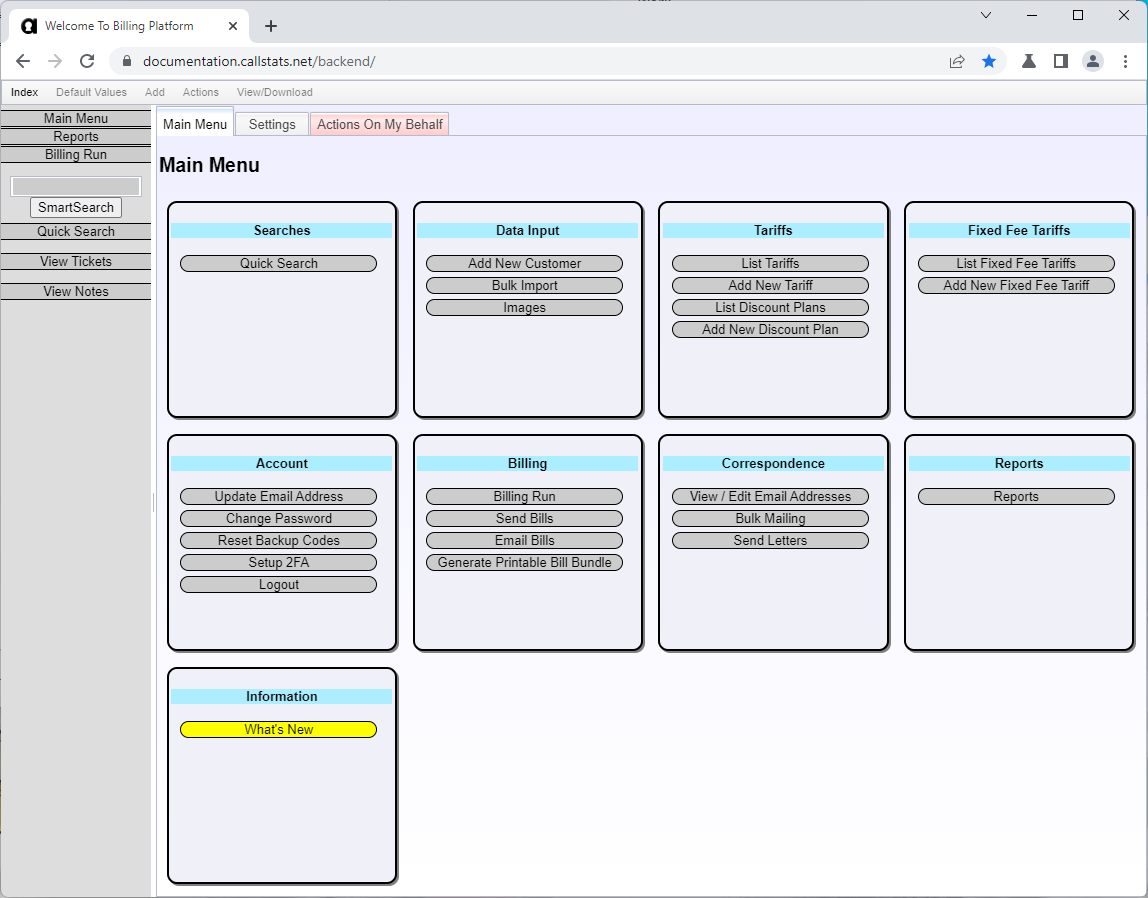
There are two other menus, the Billing Run menu and the Reports menu, both accessible from the Main Menu and from the left-hand menu.
Main Menu Page Sections
The menu page is labelled to show the following:
- Top menu bar
- Page tabs
- Actions on My Behalf
- Left context menu
- SmartSearch
- QuickSearch
- Emails
- Ticket reminders/search
- Note reminders/search
- TODOs
- Recently Viewed Customers
- Recently Viewed Numbers
- Page content
- What’s New
Info
The top menu bar and tabs are only available in enhanced mode.
Top Menu Bar
The top menu bar contains actions which can be performed on the current page. Options which are not available, either because they are not relevant to the specific page, or you lack permissions, will be greyed out.
Index
The Index option allows you to navigate the billing platform, with options to return to the various menus, perform searches or jump directly to certain pages.
Main Menu Tabs
Main Menu Tabs, allow you to view additional settings, if you have sufficient permission.
Left Context Menu
The left context menu always contains links to the main, reports and billing menus. Additional links or actions will also be shown when viewing specific items in the platform.
SmartSearch
The SmartSearch box enables quick access to SmartSearch, which will enable you to quickly find customers or numbers.
QuickSearch
QuickSearch allows you list customers meeting specified criteria (such as overdue invoices), and you have the option to save these as live searches to show up in the left-hand menu.
Tickets Requiring Attention
If there are any support tickets which require attention, either because they are new, have been updated, or have a scheduled action due, then they will be noted here. You may also set up custom searches for tickets (such as all renewal tickets with a scheduled action within the next seven days) which will also appear here.
Note Reminders
If you have set up any notes which have an action required date, then reminders will appear here when the action required is approaching or overdue.
TODOs
The TODOs section shows tasks assigned to you or your department. The list includes overdue items, tasks due today, and upcoming work. Click any category to filter your TODO list, or click “View TODOs” to search and manage all tasks. See Managing TODOs for complete details.
Recently Viewed Customers
The last five customers you have viewed in your current login session will be listed here, enabling you to quickly revisit them.
Recently Viewed Numbers
As with customers, the last five numbers you have viewed in your current login session will be listed.
Page Content
This is the main section of the page, where you view information or perform actions.
Item Pages
When viewing an item in the platform (customer, number, invoice, and so on), the page content area is split into two sections:
- Left side: Detailed information about the item
- Right side: Summary information and related items
This split can be horizontal instead of vertical if preferred.
Item Page Sections
The item page is labelled to show the following:
- Top menu bar
- Page tabs
- Help tab
- Left context menu
- Left menu
- Item details
- Important notes/tickets
- Open TODOs
- Recent updates
- Linked items
Info
The top menu bar and tabs are only available in enhanced mode.
Top Menu Bar
The top menu bar contains actions which can be performed on the current page. Options which are not available, either because they are not relevant to the specific page, or you lack permissions, will be greyed out.
Index
The Index option allows you to navigate the billing platform, with options to return to the various menus, perform searches or jump directly to certain pages.
Default Values
When you are adding or editing something within the platform (e.g. customer, number, etc.) the Default Values option allows you to load or save default values, for example you may have pre-set values for tariffs for a given type of number.
Add
When you are viewing an item within the platform you will have the option to add something to that item, for example adding a new number to an existing customer.
Actions
When you are viewing an item within the platform you may have the option to perform specified actions.
Expert Mode
When you are viewing an item within the platform expert mode may allow you perform additional actions, or override some constraints on adding/editing items.
View/Download
When tables of data are shown on the page (e.g. a list of numbers belonging to a customer, or transactions on an invoice), you will be able to download the list as a CSV file enabling you to analyse or edit the data. In some cases, the data may be re-imported to the platform once they have been edited to enable bulk changes to be made.
Page Tabs
Page Tabs, not to be confused with browser tabs, allow you to view related information, for example when you are viewing a customer, tabs are present to view a detailed list of their numbers, features, invoices and individual transactions.
Notes
Page Tabs will always include a Notes tab if there are any notes attached to the item you are viewing. You have the option of viewing the notes in a grid or list format. The default view may be changed.
Activity
You may view your activity on the item (any changes you’ve made etc.). Depending upon your access level, you may also be able to view all activity.
Left Context Menu
The left context menu contains links to information related to what you are viewing (for example a link to the customer who owns the number you are viewing) or actions you can perform (for example deleting what you are looking at).
Left Menu
The remainder of the left menu contains the same content as on the Main Menu.
Enhanced Mode Grids
If you are using the platform in enhanced mode, you will be presented with information in interactive grids. These grids may be sorted by clicking on a column header, or you may filter the information shown by clicking into the filter bar, just below the headers.
Enhanced Mode Tooltips
In enhanced mode, a tooltip/popup may be shown if you hover over a link, for example if you hover over a link to a customer, then their contact information and other basic information will be shown.