Once the initial setup is complete, Xero and the SAFE Billing Platform can be kept aligned through tasks on the platform. These bulk changes can be run as often as necessary, but most should usally only be necessary on a monthly basis, after billing runs are completed.
In addition, one-off tasks can be run to update Xero with changes made to customer, invoices and payments after they have already been sent.
Bulk Updates
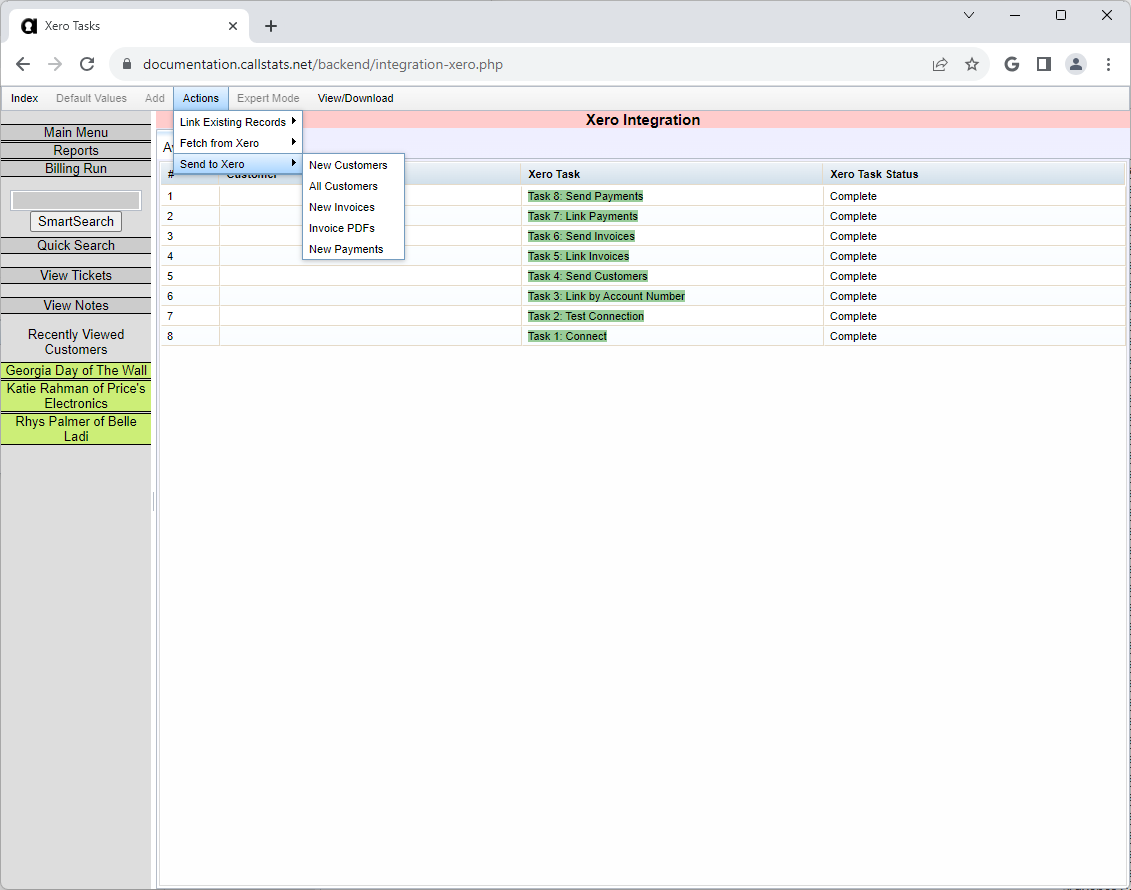
Bulk Xero tasks can be run to send new customers, invoices and payments to Xero, update existing customer details and fetch new payments from Xero. Bulk tasks can be added from the Actions menu on the Xero Tasks page.
Note
If you have multiple dealers set up, you will need to pick which dealer you wish to manage. Each dealer may link to a different Xero account.
Sending Customers
The Send New Customers task will send any newly-added customers, but will not amend any existing details within Xero. The Send All Customers will both send new customers and update any existing contacts within Xero. It is possible to update a single customer, using a one-off task.
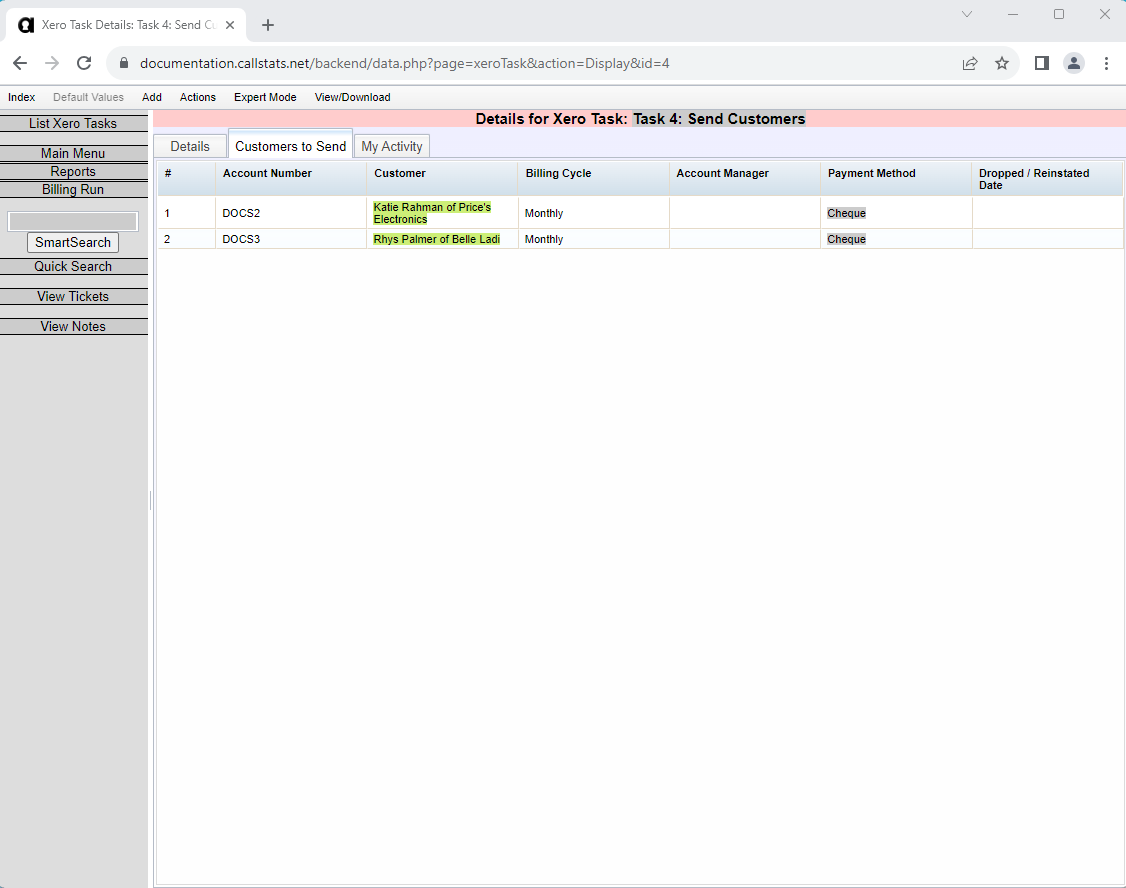
Before running the task, you should check the Customers to Send tab.
Warning
Check this list to ensure that no customers are showing who are already a contact in Xero - if any such accounts exist, they will be duplicated.
Sending Invoices
The Send New Invoices task will send any newly-added invoices, but will not amend any existing details within Xero. It is possible to update a single invoice, using a one-off task. Before running this task, you should ensure that all new customers have been sent to Xero.
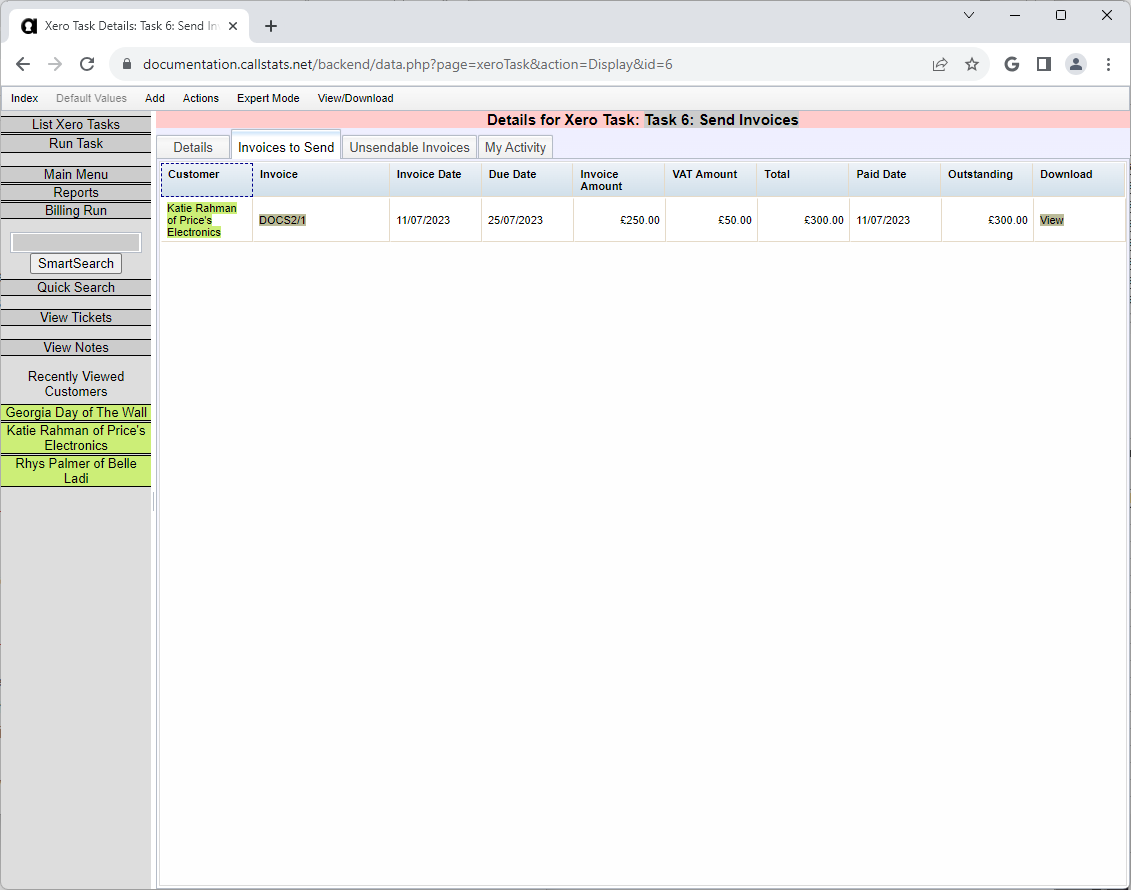
Before running the task, you should check the Invoices to Send tab.
Warning
Check this list to ensure that no invoices are showing which already exist in Xero - if any such invoices exist, they will be duplicated.
Sending Payments
The Send New Payments task will send any newly-added payments, but will not amend any existing details within Xero. It is possible to update a single payment, using a one-off task. Before running this task, you should ensure that all new invoices have been sent to Xero. Only payments which are allocated against invoices will be sent to Xero: any overpayments, or payments on account will not be sent until an invoice is raised which the payment can be allocated to.
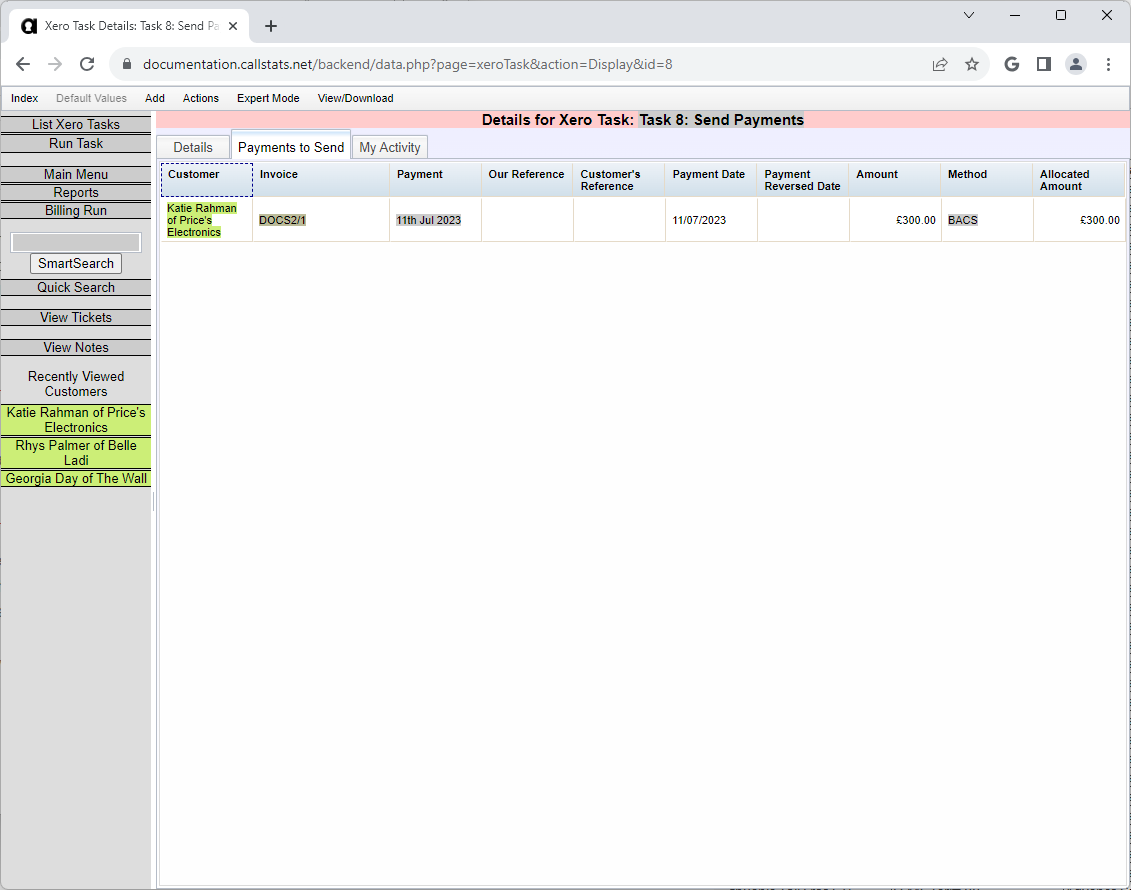
Before running the task, you should check the Payments to Send tab. As payments must be split when they pay multiple invoices, both the total payment amount, and the allocated amount are shown. To avoid double-counting payments, if you are checking the total payment amount you should look at the total allocated amount.
Warning
Check this list to ensure that no payments are showing which already exist in Xero - if any such payments exist, they will be duplicated.
Fetching Existing Payments
As payments are entered into Xero, or created automatically from bank feeds, then they can be fetched into the platform using the Fetch New Payments task.
This task should be performed after all invoices have been sent to Xero, and payments allocated within Xero, and before the next invoices are created, to ensure the balances are up to date.
Sending Invoice PDFs
The Send Invoice PDFs task will send copies of invoice PDFs to Xero, where they will show as attachments to the corresponding invoice. This can be useful to have an archived copy of the bill, or if you need to enable access to a third party (your accountants, for example).
One-Off Sending
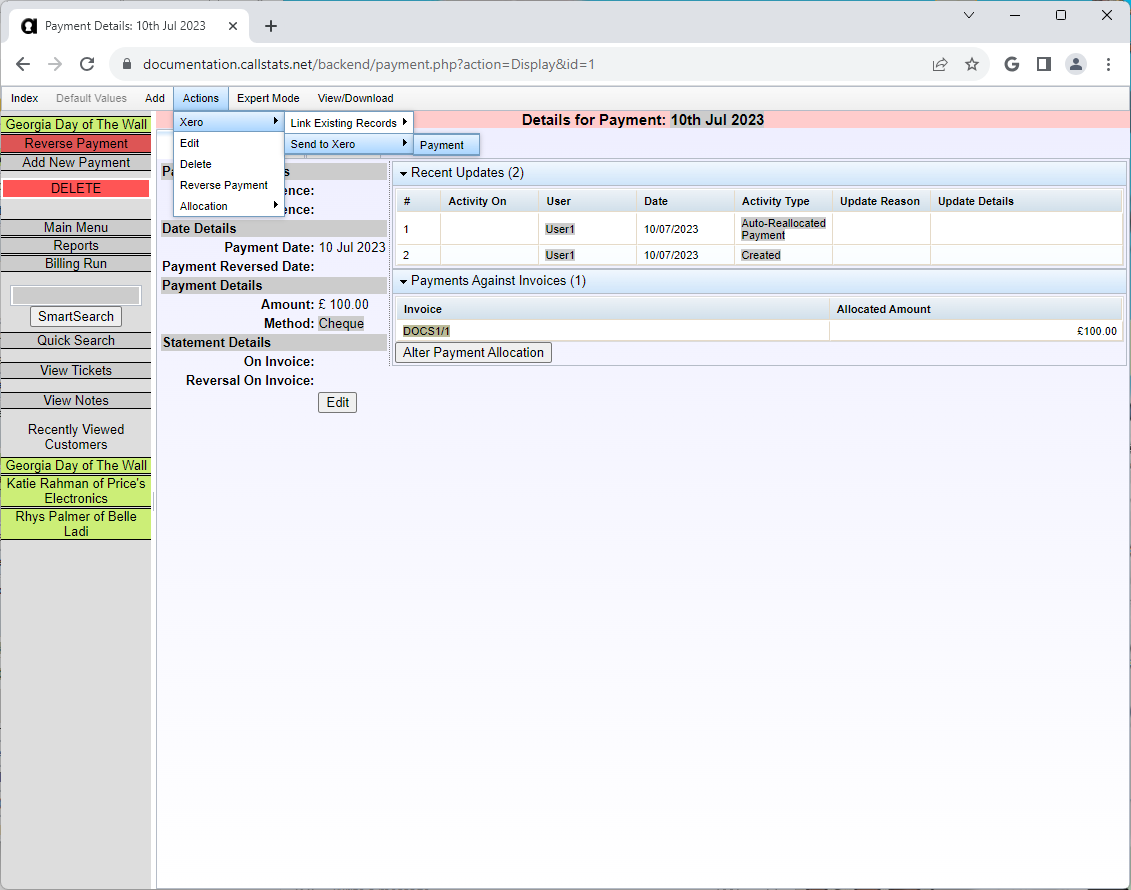
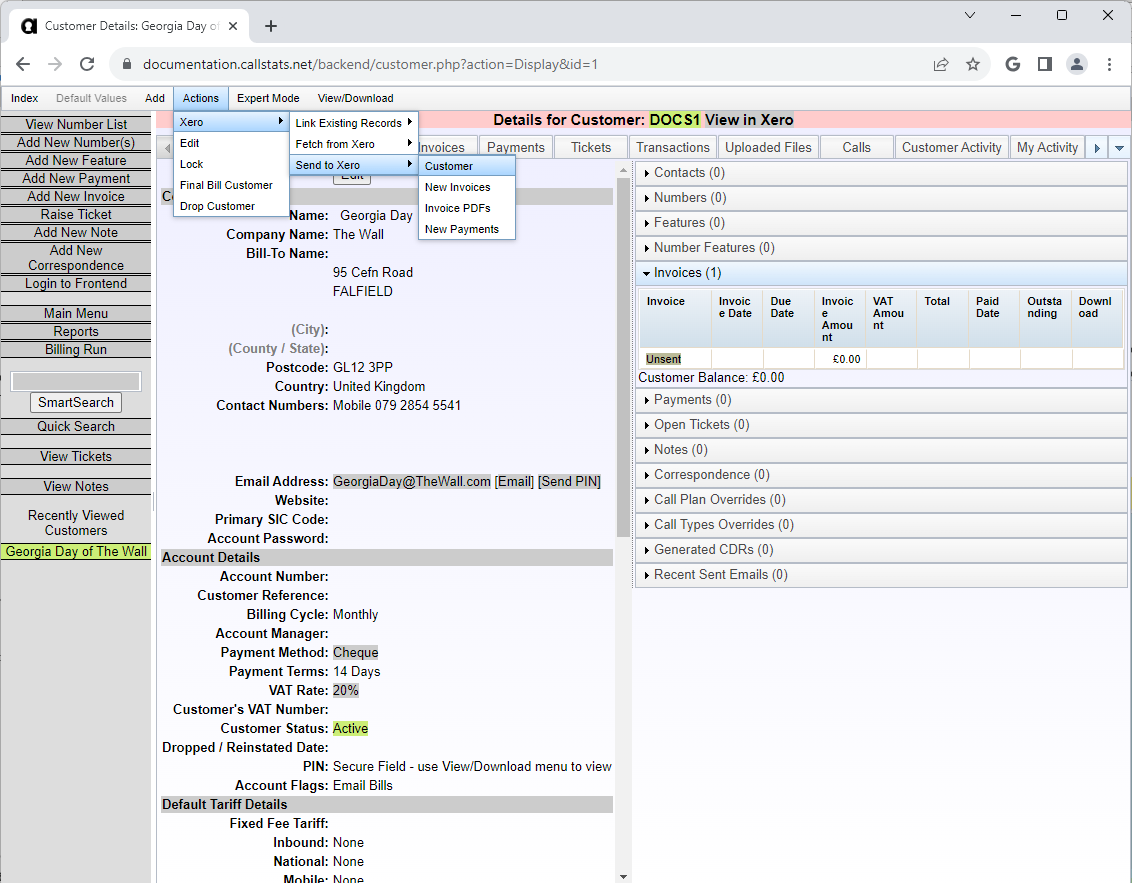
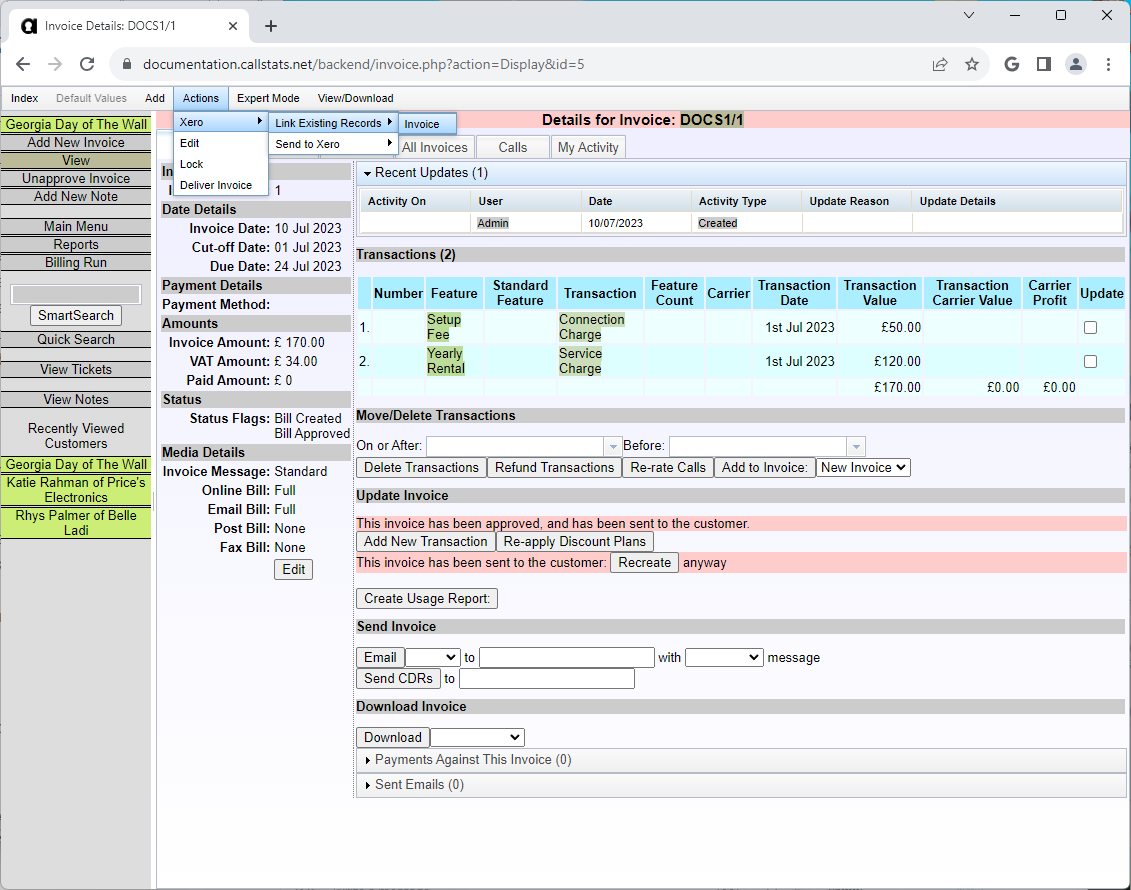
It is possible to send singe customers, invoices or payments to Xero. This can be necessary if details have been changed, to avoid needing to update Xero. To send a customer, invoice or payment use the Actions -> Xero menu on the relevant page.
Sending an Individual Customer
The Send Customer action will send the customer as a new contact if it has not been previously sent/linked, or amend any existing details of an existing contact.
Sending an Individual Invoice
The Send Invoice action will send the invoice as a new invoice if it has not been previously sent/linked, or amend any existing details of an existing invoice.
Sending an Individual Payment
The Send Payment action will send the payment as a new payment if it has not been previously sent/linked, or amend any existing details of an existing payment.